Exam mode
Leaves exactly one screen on: the one you picked as your exam screen. Press Keep to confirm; if you don't, the change is undone after 15 seconds, like Windows' own dialog.
Ctrl Alt E
For Windows · free · unofficial
In the last days before a big exam, the last thing you need is to worry about your computer's setup. ProctorReady switches your other screens off in one click, checks camera, microphone, network and more for online proctored exams such as EPSO's, and puts everything back afterwards.
No Windows? Use ProctorReady CheckTests camera, microphone and network right in Chrome or Edge, on a Mac, Linux or any PC. Nothing to install.Getting my PC ready for Proctorio took my whole work setup down. Screens gone, sound gone, and over an hour of troubleshooting before everything worked again. That is an hour you don't have in the last days before an exam.
So I built ProctorReady: one app you can trust on your own PC. It sends nothing about you anywhere, switches your screens to the test rules in one click, and puts them back when you're done.
The problem
Proctoring software such as Proctorio watches for a second screen, and many exams end the session when it finds one. So you unplug and rearrange before the test, and afterwards Windows often doesn't bring your screens back. With a screen or an AV receiver on a second output, screens even get "lost": still plugged in, but switched off. (An AV receiver is a home-cinema amplifier; Windows treats it as a screen.)
The usual advice is "unplug it or press Win+P". ProctorReady does it in one click, remembers your normal setup and checks the rest.
You're not the only one
Proctoring software is strict on purpose, and that strictness often lands on home setups. A few lines from public 1-star reviews, without the reviewers' names. They are the reviewers' own words about their own experience, not our verdict on these services.

“Went to take the test and they had me unplugging monitors and uninstalling software and then was told to reboot.”
ProctorU · Trustpilot, Aug 2026
“It was very difficult to put on my computer… Finally, after 2.5 hours I decided to contact tech support at my college…”
Proctorio · Trustpilot, Sep 2024
“The setup process took about 50 minutes of these tedious steps…”
ProctorU · Trustpilot, Sep 2026
“On multiple occasions, the browser wouldn’t recognize my webcam, leaving me unable to complete my exam.”
Respondus LockDown Browser (iOS) · App Store, Sep 2024
“The software basically forces you to get white-listed on your firewall…”
Pearson OnVUE · Trustpilot, Sep 2026
“…had a nightmare getting permission for the camera set and had to remove cookies under the app settings and use a different camera option.”
ProctorU · Trustpilot, Nov 2025
In the app · My setup
Every screen, the sound, the microphone and the camera, with plain buttons. You stay in control: nothing changes until you press a button, except the automatic repair of lost screens, which you can switch off.
Swipe the screenshots sideways to see all of them.
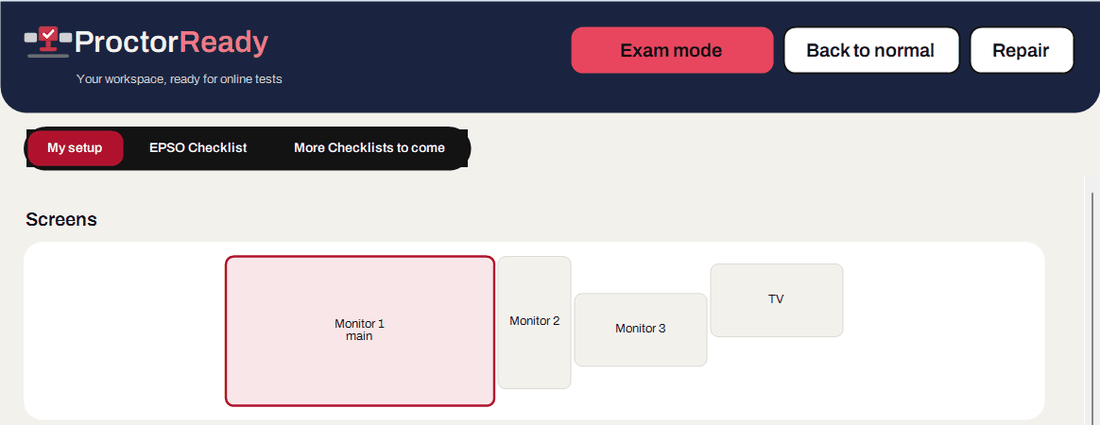
Leaves exactly one screen on: the one you picked as your exam screen. Press Keep to confirm; if you don't, the change is undone after 15 seconds, like Windows' own dialog.
Ctrl Alt E
Brings back every screen at its old position and rotation, portrait included, and the sound output you had. Save your normal setup once; ProctorReady remembers it.
Ctrl Alt N
Windows switched a screen off on its own? Repair turns it back on. A small helper next to the clock (bottom right of the screen) does this for you, at most three times in two minutes. In exam mode it keeps the extra screens off instead.
Ctrl Alt R
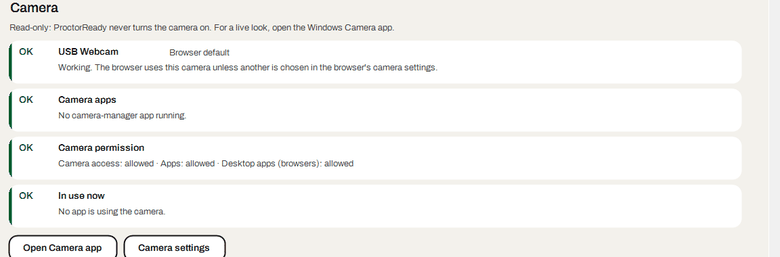
See every camera and which one Chrome or Edge will pick first. ProctorReady flags virtual cameras and camera-manager apps, shows the Windows camera permission and tells you if another app is using the camera right now. For a live look it opens the Windows Camera app.
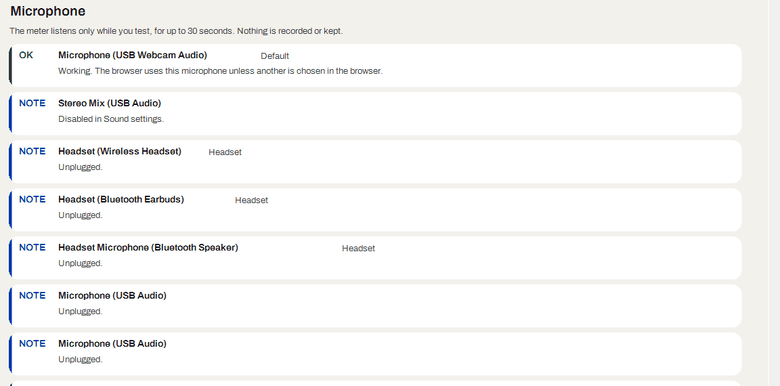
Every microphone with the default one, its volume, mute and Windows permission. Test microphone shows a live level so you can see it hears you; it listens for at most 30 seconds and keeps nothing. Headsets and earbuds are flagged, because many tests forbid them, and the sound output shows its volume and mute.
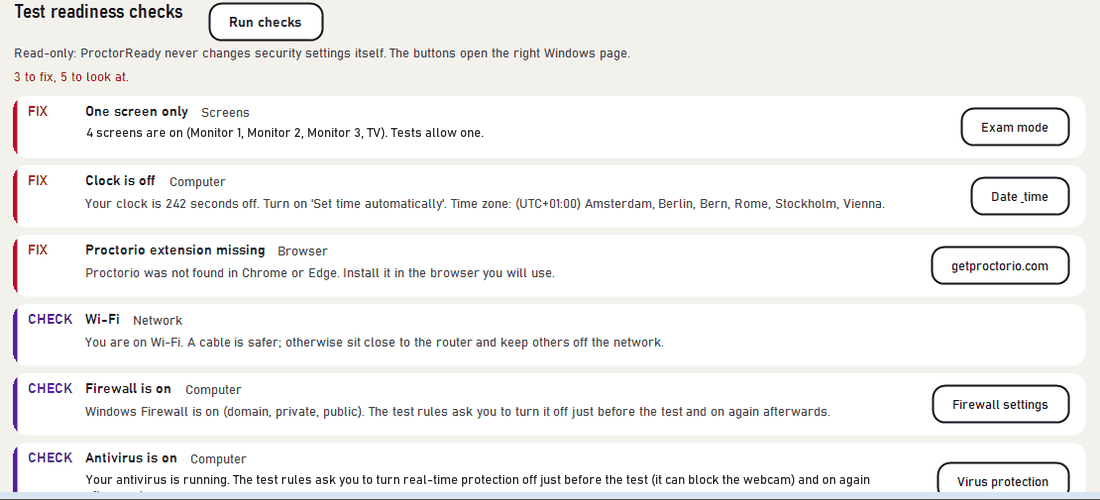
Run checks looks at what the computer can test itself and lists what to fix first, each with a button to the right Windows settings page.
OK fine Note good to know Check look at it Fix fix before the test
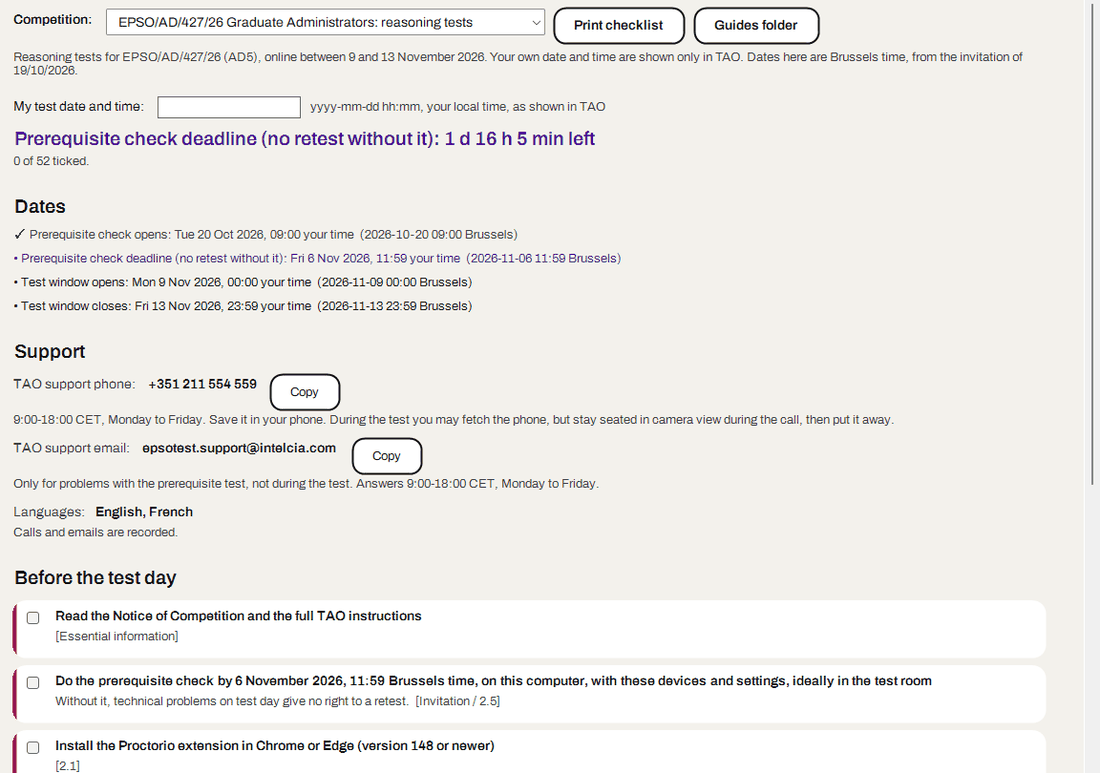
In the app · EPSO Checklist
More than 50 things to tick off and the rules that can end a test, from the instructions of EPSO (the EU's recruitment office) for online tests on TAO, its test platform, with Proctorio. In plain words, each with the section number so you can look it up.
EPSO/AD/427/26 candidates: the dates of the reasoning tests (9 to 13 November 2026) and the 6 November deadline are already in.
ProctorReady is unofficial. It is not made by or affiliated with EPSO, TAO or Proctorio, and it can't promise that your test session is accepted. Your invitation and the official instructions always win.
In the app · More Checklists to come
A general checklist for any online proctored exam is included: Proctorio, ProctorU, Examity, Respondus, TestWe and others. The same automatic checks work with it.
Send us the official instructions for your test and we'll look at adding a checklist for it.
Checklists are simple text files. You can also write your own: the format is in the guides folder that comes with the download.
What it changes
ProctorReady never turns off a firewall, antivirus or anything else. Its buttons open the Windows page where you decide.
Exam mode waits for your Keep and undoes itself after 15 seconds without it. Your normal setup is one button away.
No account, no tracking. The one network request is a quick look at eu-careers.europa.eu to compare your clock.
Unzip and start. Settings, log and ticks stay in %APPDATA%\ProctorReady (type that into the Explorer address bar). To remove ProctorReady, delete that folder and the one you unzipped.
Five steps
Arrange your screens as you like them, then press Save as my normal setup. It saves the sound output too.
One screen, on its card. A receiver can't be the exam screen.
Before the test, press Exam mode and confirm with Keep.
Run the checks and tick off the rest. To be safe, also pull the cables of the other screens: some rules forbid a second screen even being connected.
After the test, one button brings every screen and the sound back.
Download
Free. Right-click the zip, choose Extract All, then open ProctorReady.exe in the new folder. First thing in the app: arrange your screens as you like them and press Save as my normal setup (the five steps).
Download ProctorReady-0.1.0.zip
ProctorReady is new and not yet signed with a code-signing certificate, so Windows SmartScreen may say "Windows protected your PC". Click More info, then Run anyway. Only do this with the file from this page; if you want to be sure, check its fingerprint first.
Open PowerShell and run:
Get-FileHash "$env:USERPROFILE\Downloads\ProctorReady-0.1.0.zip"
The Hash it shows must match this fingerprint (SHA-256):
dc65e781cc0c1ccb6da5b7121431c6705352ea0e805535b2402bbf1fd417284f
No. It is made by Cordaves, a small company in Frankfurt am Main, and is not affiliated with EPSO, TAO, Proctorio or any exam provider. It can't promise that a test session is accepted. The official instructions and your invitation always win.
No. Do the official prerequisite check on the same computer, with the same devices and settings, before the deadline. ProctorReady helps you get there and reminds you of the deadline.
Exam mode switches them off in Windows. Some test rules forbid a second screen even being connected, so pulling the cables as well is the safe choice.
Extract the zip, open ProctorReady.exe and press Save as my normal setup. Then follow the five steps: pick the exam screen, try Exam mode once, work through the checklist and go back to normal.
Click More info, then Run anyway, but only for the file from this page. Check the file (optional) in the download section shows how to make sure.
There is no installer and no account, and nothing about you leaves your PC: the only network request is a quick clock check against eu-careers.europa.eu. The file isn't code-signed yet, so Windows may warn you; Check the file next to the download shows how to make sure you have the file from this page.
If you don't press Keep, Exam mode undoes itself after 15 seconds. Back to normal (Ctrl+Alt+N) brings back every screen and the sound output you saved.
Never. It shows you their state and opens the right Windows settings page. If the test rules ask you to turn something off, you do it yourself and turn it back on afterwards.
The app runs on Windows; so far it's tested on Windows 11. On a Mac or on Linux you can use ProctorReady Check today: it checks screens, camera, microphone, network and browser in Chrome or Edge and has the EPSO checklist, with nothing to install and nothing leaving your browser. It can't switch screens for you; the Windows app can. Full versions for macOS and Linux are being built; write to info@cordaves.com if you'd like to hear when they're out. Laptops haven't been tested yet; laptop support (lid closed, one external screen) is planned.
The full checklist is for EPSO tests on TAO with Proctorio. A general checklist covers other online proctored exams. Write to info@cordaves.com to ask for yours.